Free Invoice Template (Word Download) and How to Get Paid Faster
Download a free invoice template for Word or Google Docs, see a filled-in example, and pick payment terms that get you paid this week, not next month.
You did the work. The client was happy. Now they've asked for "an invoice", and you're staring at a blank document wondering what's supposed to go on it.
An invoice doesn't need to be fancy. It needs to be clear enough that the client can pay you without a single follow-up question. Here's a free template you can download and fill in today, a filled-in example, and the few choices (payment terms, numbering, how to get paid) that decide whether you're paid this week or chasing it for a month.
Last checked: October 2026.
Download the free invoice template
Download the invoice template (Word, .docx): free, no sign-up. It opens in Microsoft Word, Pages or LibreOffice. For Google Docs, upload it to Google Drive and open it with Google Docs.
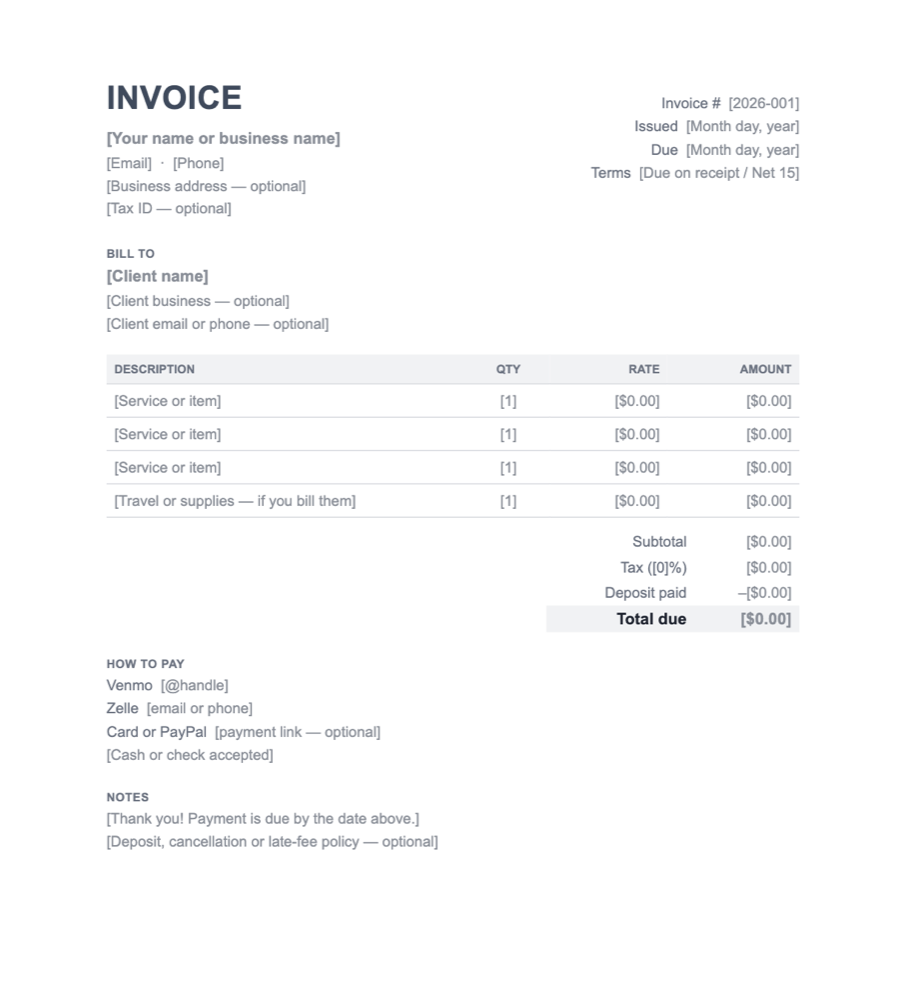
Replace everything in [brackets], delete the lines you don't need, and save it as your master copy. Each time you bill someone, make a copy, fill it in, and save it as a PDF before you send it.
What every invoice needs
Whatever tool you use, a clear invoice has these parts:
- Who it's from. Your name or business name, plus how to reach you (email or phone). Add a business address and tax ID if you have them or your client asks.
- Who it's for. The client's name, and their business name if they have one.
- An invoice number. Every invoice gets its own, and they go in order. This is how you and the client refer to it ("Invoice 2026-014 is still open").
- The date issued.
- When it's due. A date, or terms such as "Due on receipt" or "Net 15" (due 15 days after the invoice date).
- What you did. One line per service or item: a short description, quantity, rate and amount.
- The total. Add tax as its own line if you charge it, and take off any deposit already paid.
- How to pay you. Venmo, Zelle, Cash App, a card link, check or cash: whatever you take, with the exact handle or details.
- Anything else they need to know (optional). A thank-you, your deposit or cancellation policy, or a note about late payments.
If a client can read your invoice and pay it without messaging you, it's done its job.
A filled-in example
An illustrative example, not a real client.
A one-day job on location: prep the week before, the day itself, travel and supplies. The client paid a $150 deposit to book the date.
| Description | Qty | Rate | Amount |
|---|---|---|---|
| Prep and planning (Oct 11) | 2 hrs | $60 | $120 |
| On-location work (Oct 18) | 6 hrs | $90 | $540 |
| Travel (over 20 miles) | 1 | $40 | $40 |
| Supplies | 1 | $38 | $38 |
| Subtotal | $738 | ||
| Deposit paid (Sep 30) | –$150 | ||
| Total due | $588 |
Due: November 1. Pay by Venmo @[handle] or Zelle [phone].
Two things make this one easy to pay: the deposit already paid is shown, so nobody argues about the balance, and the payment handles are written out in full.
Payment terms: pick one and say it plainly
- Due on receipt. Best for one-off jobs where you're paid on the day.
- Net 7 or Net 15. Common for regular clients and small businesses who pay from an inbox.
- Net 30. Normal for larger businesses and agencies, but you'll wait. Only offer it if you can afford to.
Whatever you choose, put an actual date on the invoice too. "Due November 14" gets paid faster than "Net 30", because nobody has to count days.
Deposits go on the invoice as their own line ("Deposit paid, Sep 30: –$150"). That way the balance is never in question.
Late fees: if you charge one, say so on the invoice before it's late ("A $25 late fee applies after 14 days"). Rules about late fees vary by state, so check yours before you add one.
Number your invoices in a pattern
Pick a pattern and stick with it:
- Year + count: 2026-001, 2026-002, … The count starts again each January.
- Prefix + year + count: INV-2026-0001. Handy if you ever run a second business with its own prefix.
Never reuse a number, even if you cancel an invoice. A clean sequence makes tax time much easier, and so does showing your income to a landlord or lender later.
Common mistakes
- No way to pay on the invoice. "Let me know how to pay you" costs you a round of messages. Write the handle or payment link on the invoice itself.
- Vague line items. "Services – $588" invites questions. "Prep, on-location work, travel, supplies" doesn't.
- No due date. An invoice without one gets paid "when I get to it".
- Forgetting what was already paid. Show deposits and partial payments, or the client may pay twice, or not at all.
- Sending a Word file. Always send a PDF, so it looks the same on every phone and nobody can edit it.
Or let Velvet Ledger fill it in
The template works fine on its own. Velvet Ledger is for when you'd rather not retype what you already know. It builds the invoice from what you've recorded for that client:
- The time you spent on their work. Tasks you timed or logged hours on, and appointments by their length, come in as hours at your hourly rate. A 90-minute appointment is 1.5 hours.
- What they still owe is already ticked.
- Expenses you had for them (supplies, materials, travel) are listed, so you can tick the ones to pass on.
- A markup on any line, as a percentage or a fixed amount, if you charge one.
Then it becomes part of your income record, without linking your bank or payment apps.
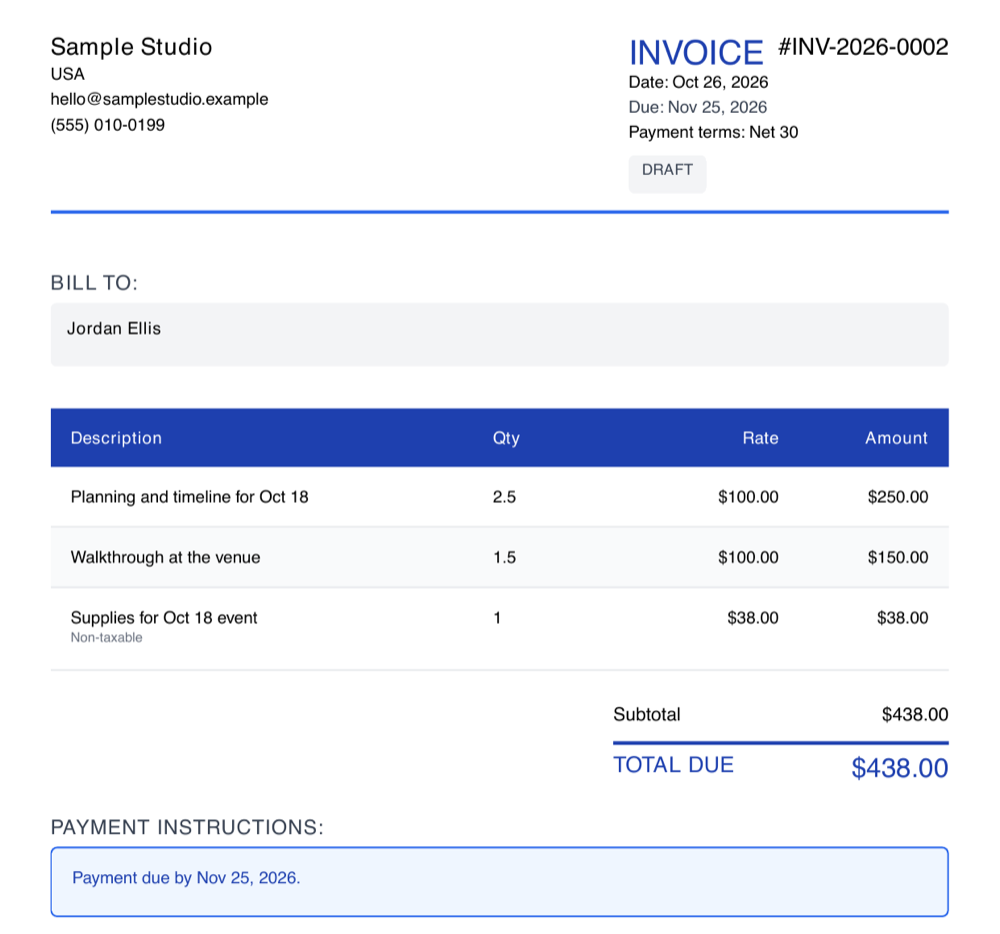
- Invoices → New Invoice, and pick the client.
- Tick what goes on it. Everything linked to that client in the dates you choose is listed. Tasks and appointments with time on them, and money they still owe, start ticked. Set your rate under More options → Hourly rate for tracked time. Add anything else with Add Line Item.
- Preview PDF, then Generate Invoice. The PDF is saved on the invoice and on the client's record. Send it the way you already talk to the client, then mark it sent, and mark it paid when the money arrives.
Billing by the hour? Link your tasks and appointments to the client as you go, and use the timer on tasks. At the end of the week or month, pick the client and the dates, and the hours are already on the invoice. If the work belongs to one project, choose it under More options → Project and only that project's time comes in.
A few more things it does:
- Your details, once. Business details, logo, payment terms and numbering live under Profile → Business Profiles. You can have more than one business.
- Regular clients: turn on Repeat under More options, and a draft is made for each date for you to check and send.
- Branding: every plan puts your logo and details on invoices. Custom colours and fonts are on the higher plans (pricing).
When someone asks you to prove your income
Landlords, lenders and benefits offices often ask freelancers to "show your income", and there's no pay stub to hand over. Invoices are half the answer; your bank and payment-app statements are the other half.
Velvet Ledger's income packet puts them together. It's a summary of your income for a period, the invoices you made, an optional cover letter, and a checklist of which statement to download for each way you were paid:
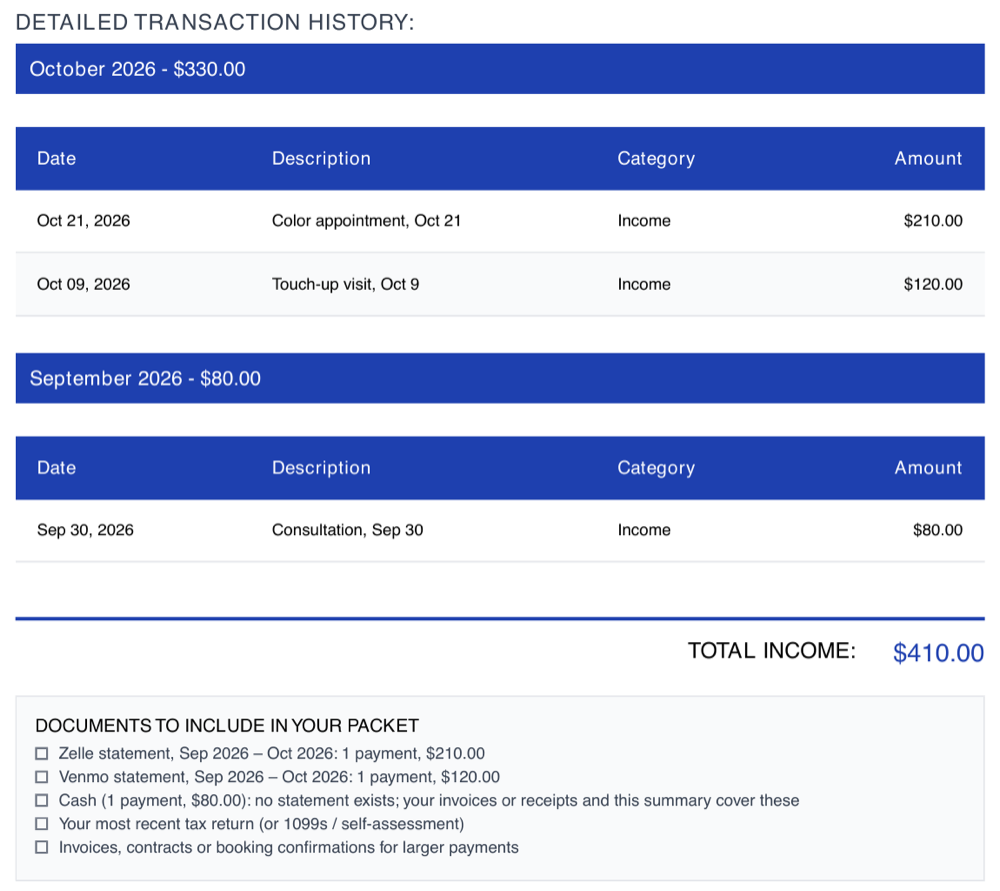
How to make an income packet, step by step →
Keep going
- See what's owed and never billed in a sample business, with no sign-up: try the demo.
- Proving income without a pay stub: what lenders and landlords look for.
- Renting a chair, booth or suite? Is the rent worth it?